Broadcast-quality excerpts: lossless cuts right inside Webgate.io
Dear Webgate.io Community,
A broadcaster needs an excerpt from your film: for a trailer, a talk show or a making-of. Until now, that meant downloading the full master, opening it in an editing suite, cutting the scene, exporting it and uploading it again. With a feature film in ProRes, that easily means well over a hundred gigabytes for a few minutes of footage.
Starting today, you can create these excerpts right inside Webgate.io, losslessly and in broadcast quality.
New in the dialog: lossless cuts
You may already know the cut function in the player: set your in and out points (keys i and o), click the cut icon, name the file, done. Webgate.io saves the excerpt as a file in the playlist's folder. Until now, that excerpt was always re-encoded to 8-bit H.264. Good enough for review, not for broadcast.
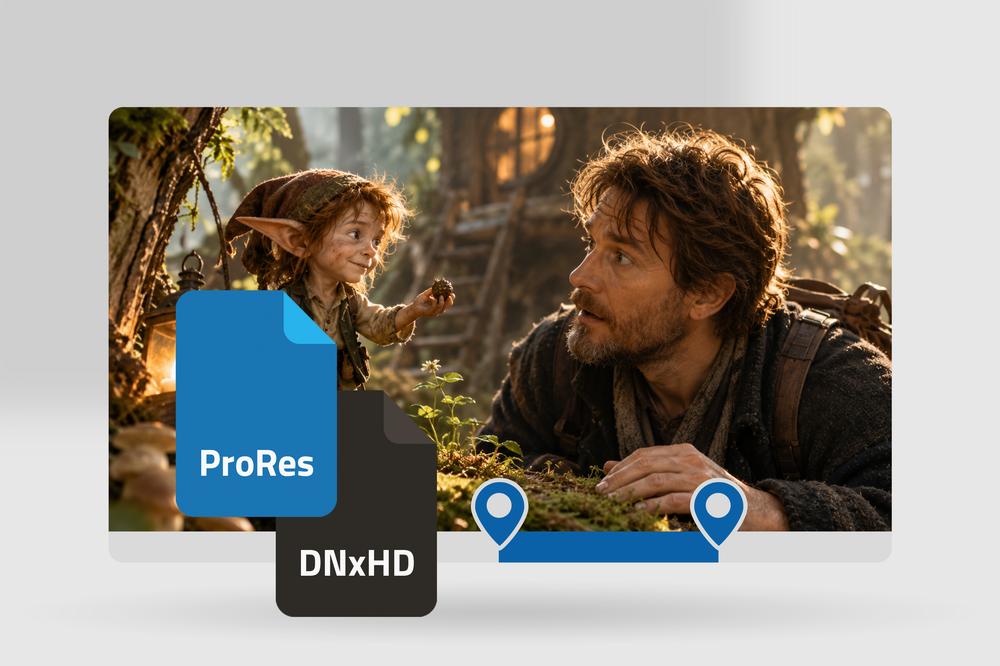
The dialog now offers a «Cut losslessly» option. When it's enabled, Webgate.io copies the picture data from your source file into the excerpt unchanged. No re-encoding, no chroma subsampling, no loss of bit depth. An excerpt from ProRes 4444 stays ProRes 4444.
Why this only works with certain formats
Formats like H.264 save space by storing a complete picture only at intervals and just the changes in between. Cutting them without re-encoding is only possible at those complete pictures, so you rarely land on the exact frame you want.
Editing and mastering formats, on the other hand, store every frame in full (the technical term is intra-frame codecs). They can be cut at any frame, frame-accurately and without loss. The option is available for these formats:
- Apple ProRes (all flavors)
- Avid DNxHD and DNxHR
- GoPro CineForm
- JPEG 2000
- Motion JPEG
- Uncompressed video
If your footage is in H.264 or another space-saving format, the dialog tells you, and the excerpt is created as H.264 as usual.
What happens to the audio
Feature films and dailies often carry many audio tracks in a single file. A lossless cut keeps every audio track. If the audio is uncompressed (PCM, the norm for masters), it is copied as is.
Format and timecode stay as they are
The excerpt keeps your source's container format: a MOV stays a MOV, an MXF with ProRes, DNxHD or JPEG 2000 stays an MXF. Only where that isn't technically possible does Webgate.io fall back to MOV.
The timecode is correct: the excerpt starts with the timecode its first frame has in the original. That way, every excerpt can always be traced back to the master.
From master to excerpt, no detour
Getting from the master to a broadcast-ready excerpt no longer takes a download and an editing software. Mark the scene, check «Cut losslessly», and the file sits in your folder in broadcast quality, ready to go to the broadcaster.
Give it a try with your next ProRes or DNxHD master. We'd love to hear your feedback.
Best regards,
Your Webgate.io Team
Gepubliceerd op: 27 oktober 2026 09:00
Broadcast-quality excerpts:...